

Publishing a story on Short Story Lovers is designed to be simple, whether you are posting a complete short story or working on a longer story chapter by chapter.
The story creation process has three main steps: Write, Add Cover Image, and Add Story Details. Before you begin writing, you will first choose whether the story is Standalone or Multi-Chapter.
Start a New Story
Sign in to your account. If you are new to Short Story Lovers, you can create a free author account first.
You can start a story from your Author Hub by choosing Add New Story, or open the Add New Story page directly.
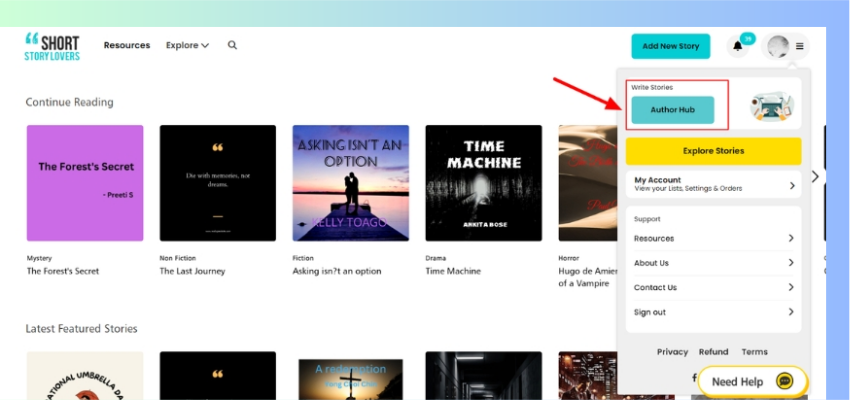
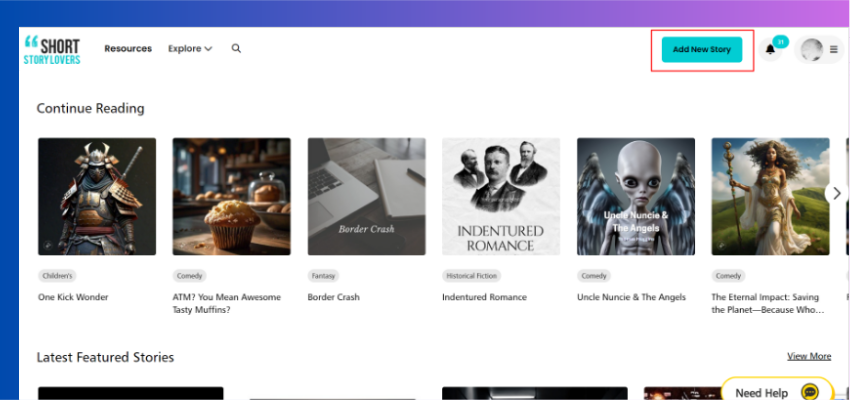
Choose Your Story Type
When you click Add New Story, Short Story Lovers first asks what type of story you want to create.
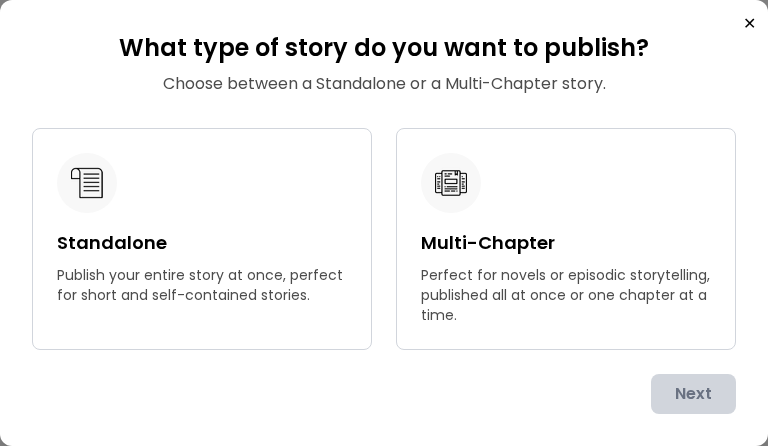
Standalone Story
Choose Standalone when your story is meant to be read as one complete piece. This is the normal choice for short stories, flash fiction, essays, one-part stories, and other self-contained work.
You write the complete story in one editor and publish it as a single story.
Multi-Chapter Story
Choose Multi-Chapter when your story needs to be divided into chapters. It works well for novels, novellas, serial fiction, episodic stories, and longer work that you may want to publish gradually.
A Multi-Chapter Story has one main story title, while every chapter can have its own title, content, description, and publishing status. Publishing new Multi-Chapter stories and chapters requires active Pro Author access.
Step 1: Write Your Story
Writing a Standalone Story
Start by entering your Story Title. Below the title is the story editor where you can write directly or paste something you have already written.
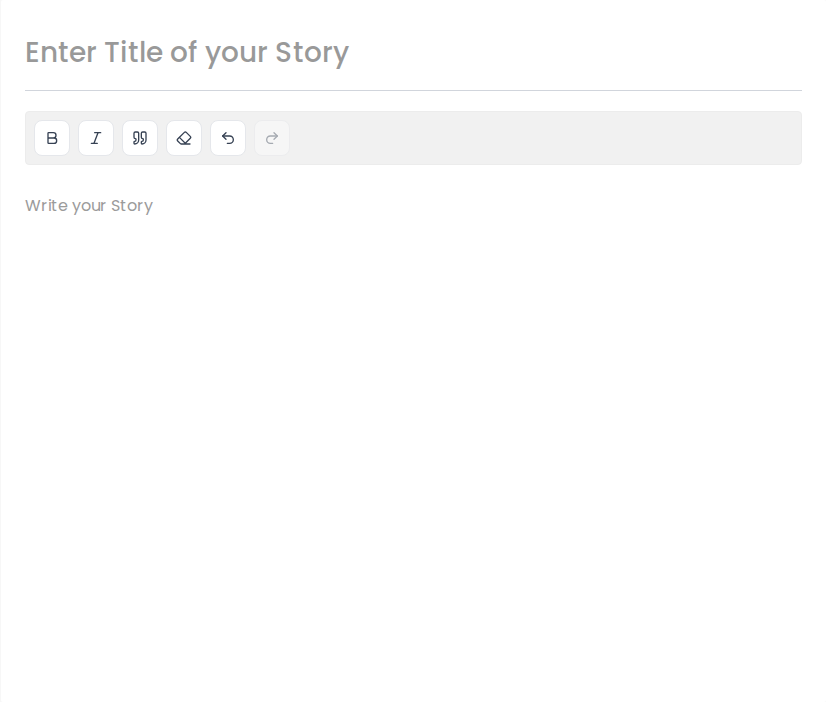
- Your work is saved automatically while you write. The header shows Saving... and then Saved just now when the latest changes are stored.
- A Standalone Story needs at least 400 characters of story content before you can continue.
- Use Preview whenever you want to see how the story will look to readers before publishing.
- If you want to stop and continue later, simply leave the story after it has saved. It will remain in My Stories → Drafts.
Once your story is ready, click Continue.
Writing a Multi-Chapter Story
The Multi-Chapter editor is built for stories that grow chapter by chapter. Start by entering the main story title, then write your first chapter.
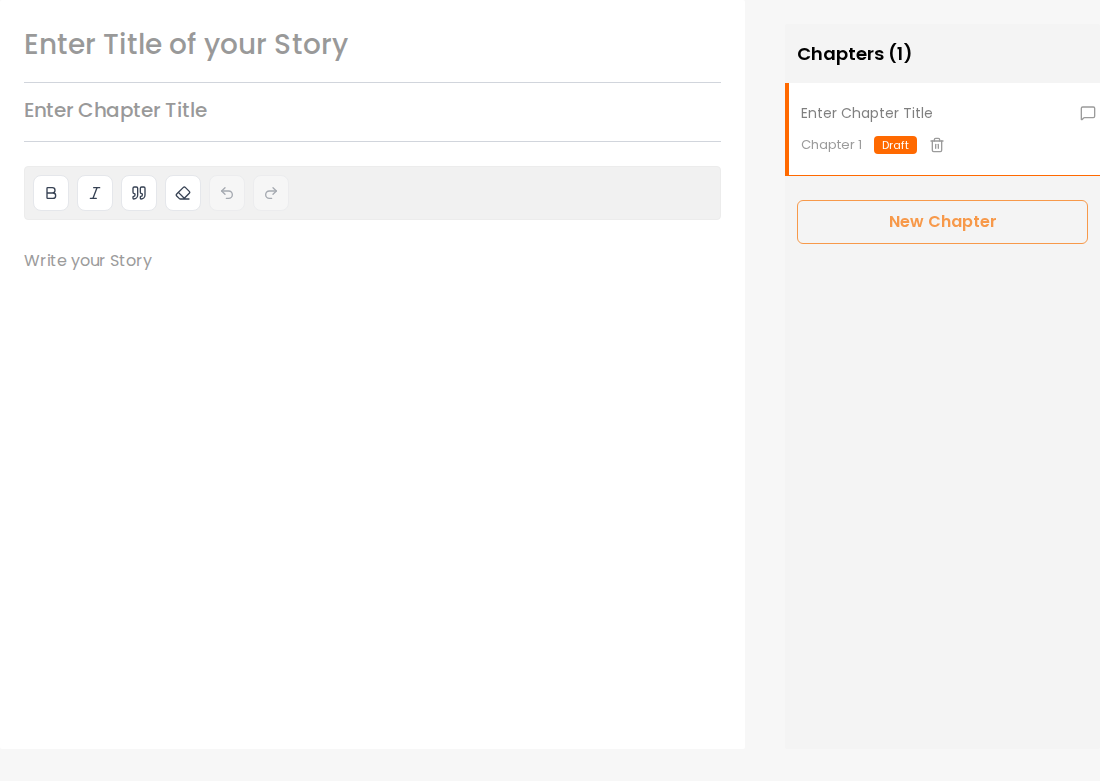
- Each chapter has its own chapter title and story content.
- Each chapter needs at least 200 characters before the story can continue to the next step.
- Click New Chapter to add another chapter to the story.
- Use the chapter panel to move between chapters while you work.
- You can drag chapters to change their order if you later decide a chapter belongs somewhere else.
- You can add a short chapter description to individual chapters.
- You can delete a chapter you no longer need.
A Multi-Chapter Story does not have to be completely finished before you begin publishing it. After the story is published, you can keep writing new chapters as drafts and publish them when they are ready. For an existing published series, the editor can also let you publish the current chapter or publish all ready chapters together.
When the chapters you want to begin with are ready, click Continue.
Step 2: Add a Cover Image
The next step is to add a cover for your story. A clear cover helps readers recognise your story and makes it look complete wherever it appears on Short Story Lovers.
Upload Your Own Cover
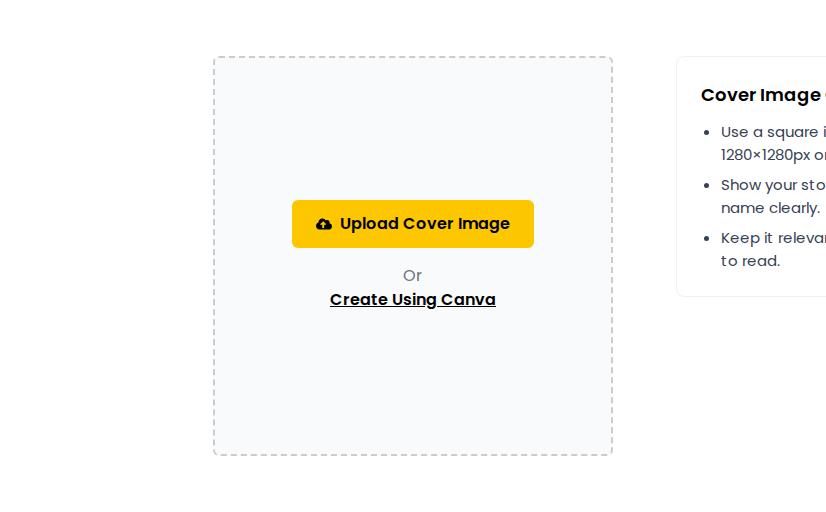
Choose Upload Cover Image and select an image from your computer or device. A square image works best. We recommend an image around 1280 × 1280 pixels or larger.
Create a Cover Using Canva
If you do not already have a cover, choose Create Using Canva to design one before adding it to your story.
Crop and Check Your Cover
After selecting an image, crop it into the square format shown on the page. Keep the important artwork inside the crop and make sure the story title and author name remain easy to read.
For more help with covers, see How to Add a Cover Image to Your Story.
Once the cover looks right, click Continue.
Step 3: Add Story Details
The final step controls how your story is described, discovered, shared, and published. Take a little time here because these details help readers understand what your story is and determine who can read it.
Story Description
Add a short description that gives readers a reason to begin the story. Explain the premise, situation, or central idea without giving away everything that happens.
Choose Who Can Read the Story
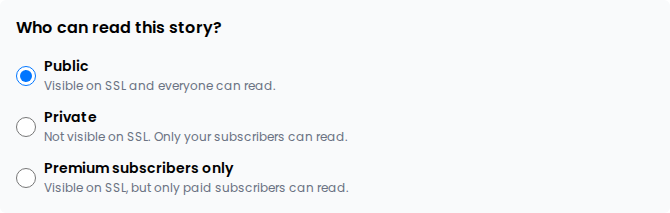
You can choose how the story should be shared. The options available to you may include Public, Private, and Premium subscribers only.
- Public: Choose this when the story is ready to be published openly and discovered by readers on Short Story Lovers.
- Private: Choose this when you want the story to remain off public discovery and share it privately. See the complete Private Stories guide.
- Premium subscribers only: Eligible Pro Authors can reserve a story for paid subscribers. Learn more about Premium Stories and the story lock.
Choose Categories and Sub-Categories
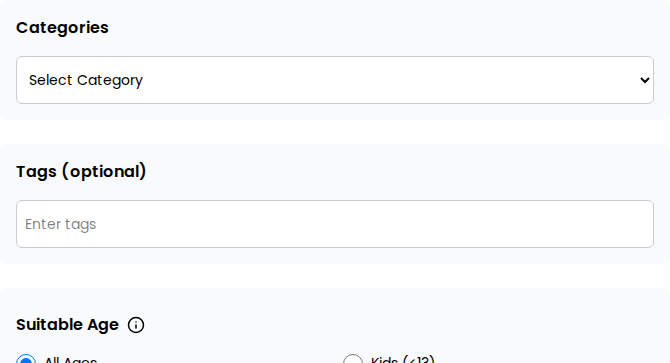
Select the category that best represents your story, such as Romance, Horror, Mystery, Science Fiction, Fantasy, Adventure, Inspirational, Fiction, or another appropriate category. Where available, choose the most suitable sub-category as well.
Choose the category that actually fits the story rather than simply choosing a popular one. Accurate categorisation helps the right readers discover your work.
Add Tags
You can add up to 3 tags that describe important themes, subjects, or elements in the story. Use specific tags that add useful information instead of repeating the category name.
Select the Suitable Age
Choose the age group that is appropriate for the actual content of your story: All Ages, Kids, Teens, or Adults.
Notify Your Subscribers
Where available, choose whether your subscribers should receive an email newsletter and/or a website notification when the story is published. If you want more detail, see Notifying Subscribers When You Post a New Story.
Preview Before Publishing
Use Preview Your Story before the final action. Check the title, cover image, description, story formatting, paragraph spacing, chapter order, and other details exactly as a reader will see them.
When everything looks right, use the final action shown on the page. Depending on your visibility choice and account eligibility, this may appear as Publish, Submit, or Share Privately.
Understanding Drafts, Public Stories and Private Stories
These are different stages or visibility choices for your story, and understanding the difference makes managing your work much easier.
Draft
A Draft is a story you are still working on. It is not publicly published. You do not have to finish a story in one sitting.
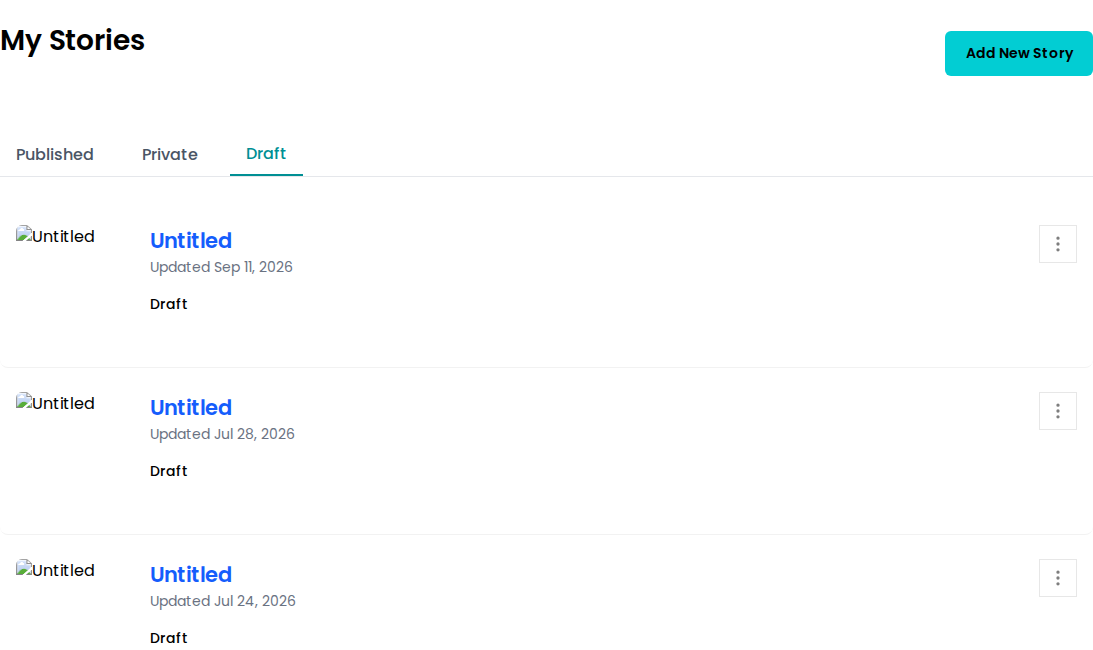
Your saved drafts are available under My Stories → Drafts. Reopen a draft whenever you want and continue editing its title, story content, chapters, cover, or story details.
A Multi-Chapter Story can also have new chapters that remain drafts while earlier chapters are already published.
Think of a Draft as: “I am still working on this.”
Public Story
A Public Story is something you are ready to share openly with readers. It can appear on your Author Site and can be discovered by readers across Short Story Lovers.
Once published, you can manage it from My Stories → Published and share its story URL anywhere you want.
Publishing a Multi-Chapter Story does not mean the whole series has to be finished. You can continue writing and publishing later chapters.
Think of Public as: “This story is ready for readers.”
Private Story
A Private Story is different from a Draft. A Draft is mainly your unfinished working copy. A Private Story is something you have chosen to share without publishing it openly across Short Story Lovers.
Private Stories can be useful when you want trusted readers to see a story first, want feedback before a public release, or simply do not want the story publicly discoverable yet.
You can manage them from My Stories → Private. For the complete sharing process, see How Private Stories Work.
Think of Private as: “This can be read by the people I choose, but I am not publishing it openly yet.”
Premium Subscribers Only
Eligible Pro Authors can also publish stories for paid subscribers only. The story can be visible on Short Story Lovers, but the full story is reserved for readers with the required paid subscription. See Making a Story Exclusive for Paid Subscribers.
Writing in another language?
The story editor lets you choose its writing language and may suggest another language if the text appears different. You make the final selection. New public non-English stories receive an additional content and quality check. Some publish automatically; others may remain under review until the SSL team completes a check. Do not treat submission as confirmation that the story is already public.
Read Write in Your Language for language selection and Understanding Multilingual Story Review for publication status and email updates.
After Publishing
You can return to My Stories at any time to manage your published stories, private stories, and drafts.
- Edit or update your story when needed.
- Continue adding chapters to a Multi-Chapter Story.
- Share the story URL with readers, on social media, or anywhere else you promote your work.
- Use Featured Stories when you want additional visibility on Short Story Lovers.
If you run into a problem while publishing, see Unable to Post a Story.
That is the complete process: choose the right story format, write at your own pace, add a strong cover, complete the story details, preview everything carefully, and publish when the story is ready for readers.